
Nocturne
Your keyboard backlight, on a schedule.
Nocturne is a small menu bar app that turns the built-in keyboard backlight off when you don't need it: all day, on a schedule you set, or from sunrise to sunset wherever you are. It hands it back untouched when you're done.
Requires macOS 15.7 or later
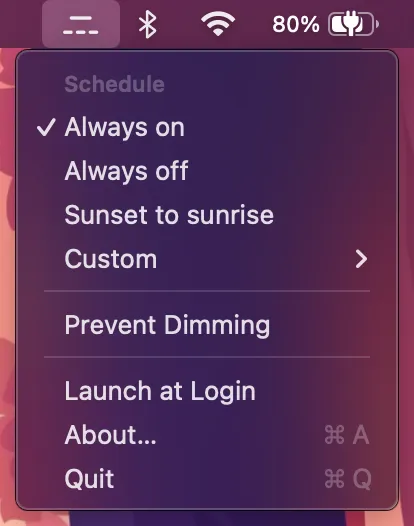

Nocturne puts an icon in the right side of your menu bar. Click it to choose when the backlight should be off.
Four schedules
Always on
Nocturne stays out of the way and the backlight behaves normally.
Always off
The backlight stays off.
Sunset to sunrise
The backlight is off during daylight and comes back when it gets dark. Uses civil twilight, so it switches when it's actually dark rather than at the moment the sun crosses the horizon.
Custom
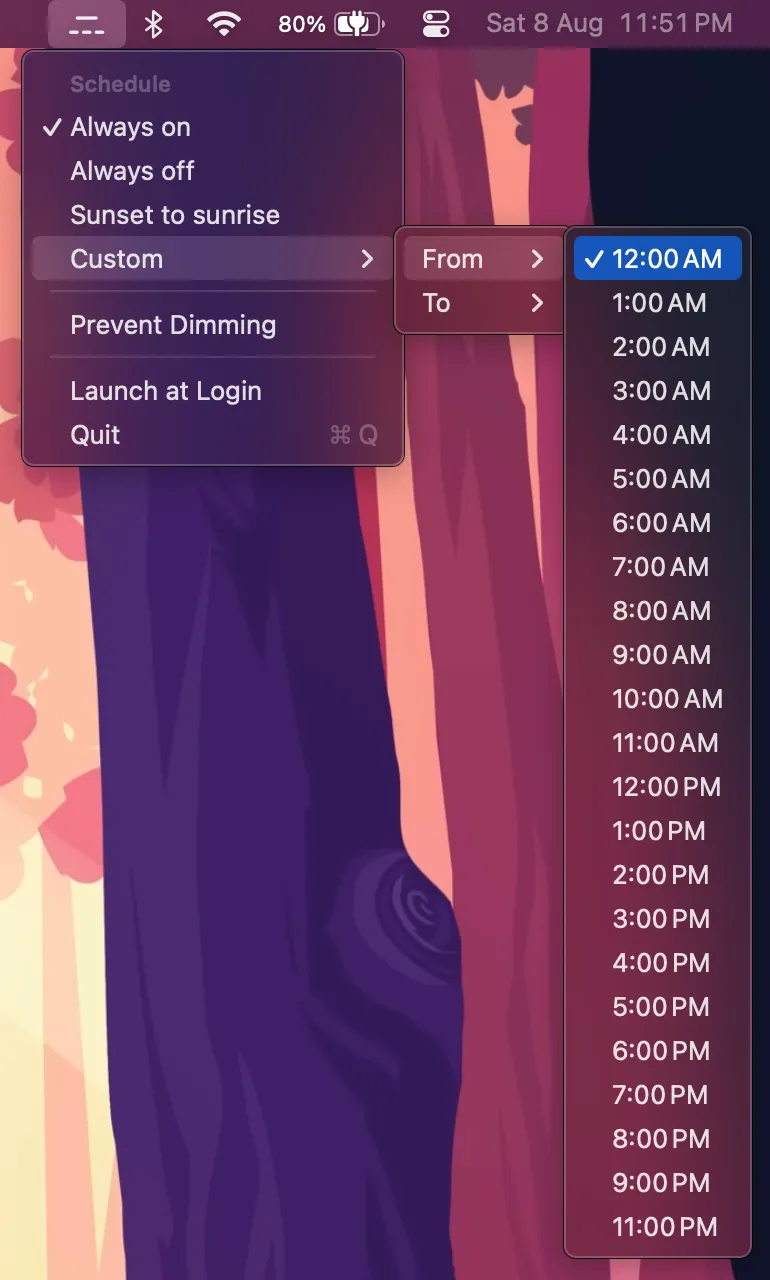
Pick the hours the backlight should be off. Windows that run past midnight are fine, so 22:00 to 07:00 works as you'd expect.
Custom hours
Custom schedules are set from the submenu, one hour for the start and one for the end, on the hour or the half hour. Windows that run past midnight are fine, so 22:00 to 07:00 works as you'd expect.
Along the way
Pause for an Hour
Puts the schedule aside and gives the backlight back for an hour, for when you need to see the keys right now. The schedule picks up again on its own when the hour is up.
Prevent Dimming
Stops macOS from fading the keyboard backlight after a minute of inactivity. It's off by default, and Nocturne puts your original setting back when it quits.
Launch at Login
Starts Nocturne automatically. macOS may ask you to approve it in System Settings the first time.
Nothing leaves your Mac
Sunset to sunrise needs your location to work out when the sun rises and sets. Nocturne only ever computes those times locally, and nothing is sent anywhere.
Installing
Download the latest release, drag Nocturne into your Applications folder, and launch it. It lives in the menu bar and has no window and no Dock icon.
The first launch
Nocturne isn't notarized, so macOS blocks it the first time you open it. Open System Settings, go to Privacy & Security, and scroll to the security section: there's a line saying Nocturne was blocked, with an Open Anyway button next to it. You only do this once, and updates install without asking again.
With Homebrew instead:
brew tap gabriele-rizzo/nocturne https://github.com/gabriele-rizzo/Nocturne
brew trust gabriele-rizzo/nocturne
brew install --cask nocturne
Homebrew asks you to trust a tap that isn't one of its own before it will run the cask.
Updates
Nocturne updates itself in place, so there is nothing to drag into your Applications folder a second time. It won't check on its own until you say it can, and every release is signed with a key that only the project holds.
See what's changed